
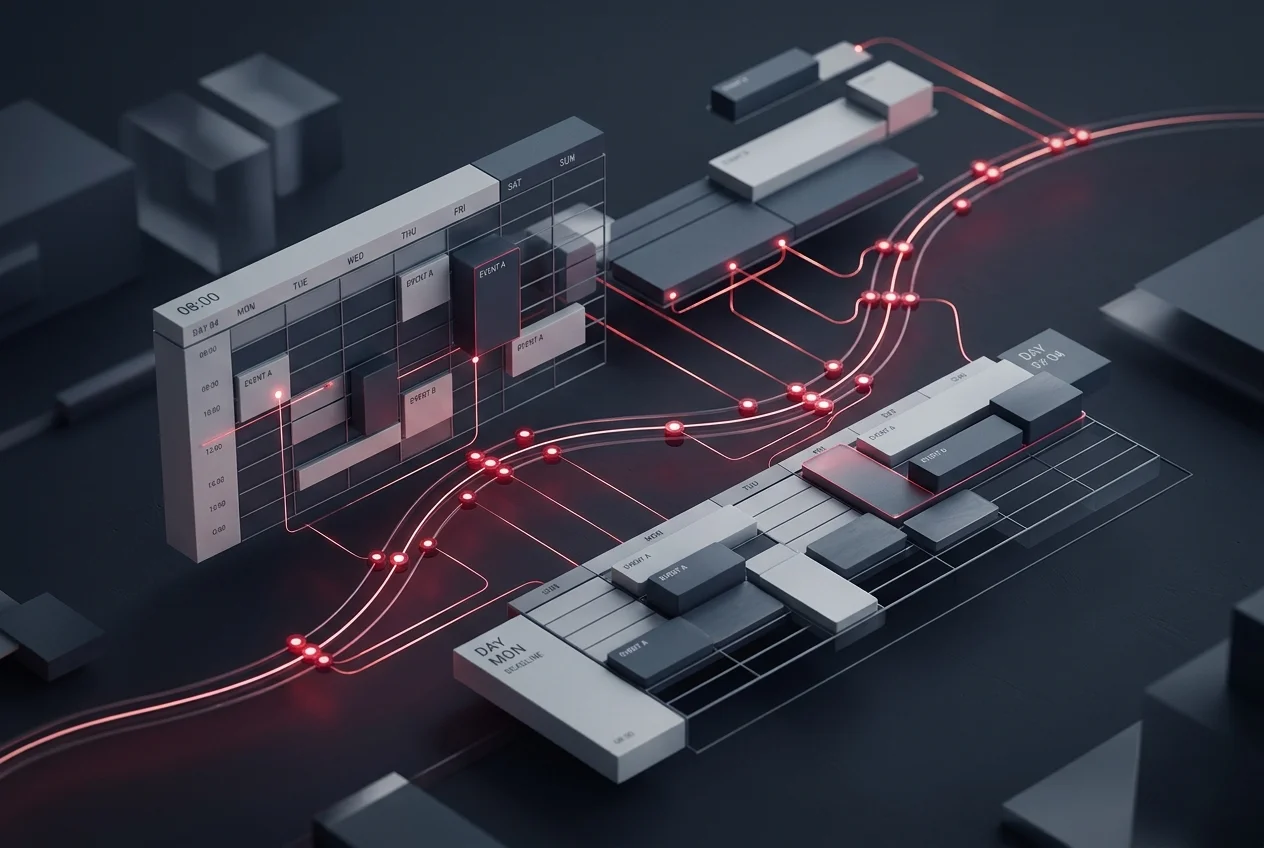
Every shift has one true status.
Dispatchers build the schedule in a drag-and-drop Master Project View. Nothing reaches the field until it's explicitly published.
statuses
one shared vocabulary
exception states with a mandatory note
No Show and Missed Punch, each requires a typed reason
separate actions
save the draft, then explicitly publish
Built on the Master Project View: drag a worker onto a shift, done.
Every shift on the board carries one of eight statuses, the same vocabulary a dispatcher, a worker and a client all read the same way. This is the legend as it appears on the board itself, not a paraphrase of it.
One screen, one date, the whole day's coverage.
The Master Project View is a full-screen board for a single date. It splits into two halves: jobs and their assigned workers on the left, everyone still available to assign on the right. In one observed working session the board carried 4 jobs and 35 total employees, with 6 of them already assigned, numbers that shifted live as assignments were made, not fixed defaults the platform enforces. This is the same board a facility-management operator uses to see coverage across dozens of properties in one screen.
Per-PM job cards, left side
The board is grouped by Project Manager. Each PM's section opens with a summary sub-table of their jobs and total hours, then one card per job showing the job code, location, start time and the Field Manager assigned. Assigned workers sit on the card as draggable chips with an inline status dot and a pencil to edit them.
Available Employees, right side
A searchable roster of every employee not yet placed on a job that day, each chip tagged by role. Dragging a chip onto a job card assigns it; an empty card reads "Drop employees here" until someone is.
Date and filter controls, top
Date-navigation arrows move the whole board a day at a time. "All PM" and "All Jobs" filters narrow the view, and a "Last published" timestamp sits at the top so a dispatcher always knows how current the live version is.
Each job card also carries a Job Notes counter that opens the job's own notes thread, so schedule-level context stays attached to the job instead of living in a side conversation.
Dropping a chip opens an editable assignment.
Dragging an employee chip from the Available Employees panel onto a job card creates the assignment. A dispatcher can then open it to confirm or adjust: the employee, their role, the project (shown with a status dot, job code, client and Project Manager for context), a start and end date, and a start and end time.
Total Hours is calculated live from the time range entered, not typed in separately. A 01:00 AM to 09:30 AM shift resolves to 8.5 hours the moment both times are set.
Pulling someone off a past shift asks why.
If a dispatcher unassigns an employee from a job whose scheduled time has already passed, the board detects that the shift window is over and pre-fills a warning: "This schedule time has passed and is marked as No Show." Confirming requires a no-show reason before the record can be closed out.
Unassigning is not a quiet edit. It ends in a distinct, explicit confirmation, not a chip that just disappears from the card.
A no-show requires a note, not just a tap.
Marking a shift No Show is not a single click. A dispatcher has to type why, so the record explains itself later without anyone having to remember the context.
The same mandatory-note pattern applies to Missed Punch and Conflict, so exceptions stay explained, not just flagged.
Drafts don't leak to the field.
A schedule stays in Draft while it's being built. Publishing opens its own review screen first: a list of exactly which draft schedules are about to go live, the specific employees who will be notified, and a separate count of who is still not assigned for that date. Nothing goes out until a dispatcher confirms that screen.
Publishing is a distinct action from saving, by design: draft and live are never the same view. A finished day can also be copied forward to a new date, so a recurring roster isn't rebuilt from a blank board.
Exceptions get a name, not a note buried in someone's inbox.
No Show, Missed Punch and Conflict are values in the same eight-status legend every dispatcher, worker and client reads. When a shift goes wrong it gets labelled, not described — and No Show and Missed Punch each require a typed reason before they close, so the record carries why, not just what. A staffing agency dispatching a roster that turns over weekly reads the same reason-logged exceptions across every client site.
Onboarding
Activation
Field Execution
Monitoring
Completion
Exit
Scheduling is where Field Execution begins: a published shift is what turns an activated worker into a dispatched one.
Go deeper
Practical answers for your evaluation

A schedule the field
can actually trust.
We will map Hirebase to your compliance framework,
your ERP and your region.